View
Viewer
Creator
Viewer guide
Understand the public viewer end to end — so creators design better worlds and visitors explore with confidence.
EducationMuseum or exhibitStoryworldProduct showroomTravel or real estateTraining
Goal
Make the visitor experience effortless to understand — whether someone arrives from a shared link or stumbles in through Explore.
When to use it
- You are about to share a world with visitors.
- You are building a world and want to understand the final experience.
- A visitor needs quick guidance on the controls.
Step-by-step walkthrough
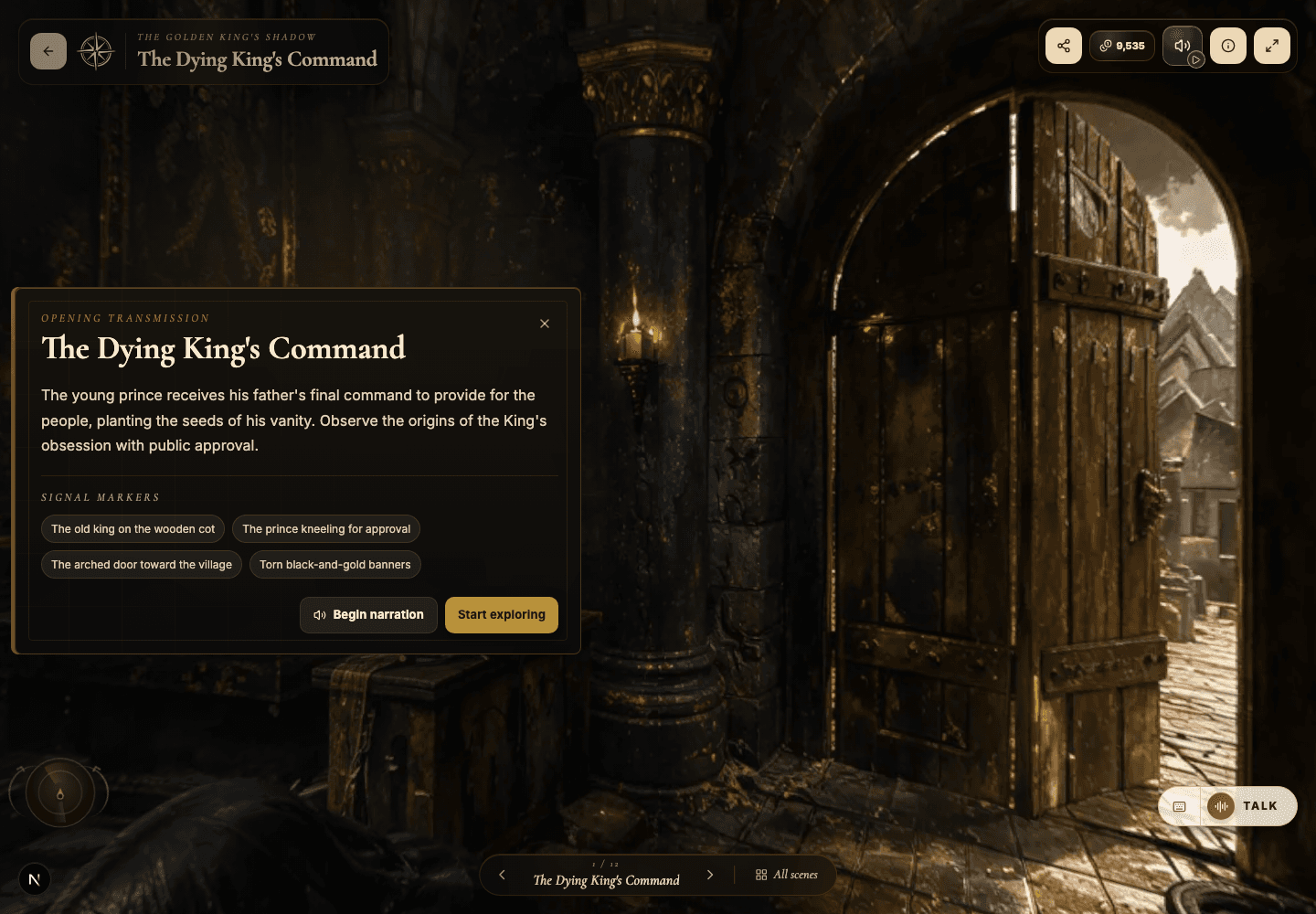
- Drag with a mouse or swipe on a touchscreen to look freely around the panorama.
- Tap or click hotspots to read a note, listen to narration, watch media, or travel to another scene.
- Use the scene controls when the world offers direct navigation between scenes.
- Play narration or background music wherever the world makes it available.
- Open the AI Guide panel and ask a question whenever the guide is enabled for that scene.
- Share the link any time you want someone else to step into the exact same world.
Best practices
- Creators: test the viewer on both desktop and mobile before sharing widely.
- Visitors: rotate slowly through a scene first, before rushing to open every hotspot.
- Use headphones when a world leans heavily on narration or music.
- On a public world, read the opening panel before jumping between scenes.
Avoid these mistakes
- Assuming everything important is visible from the initial camera direction.
- Missing portal hotspots because a scene was never fully explored.
- Closing the opening context panel before understanding the goal of the world.
Go deeper
- A great public viewer experience works with zero explanation from the creator.
- Strong worlds teach visitors how to behave within the very first scene.
- Creators learn the most by silently watching someone else explore their world.
Screenshot callouts
Related next lessons
Improve
Hotspots, narration hotspots, and portals
Design clickable moments that teach, tell a story, and move visitors smoothly through connected scenes.
ContinueImprove
AI Guide and quiz mode
Configure scene-level guidance so visitors can ask questions, get help, or be quizzed right inside the world.
ContinuePublish
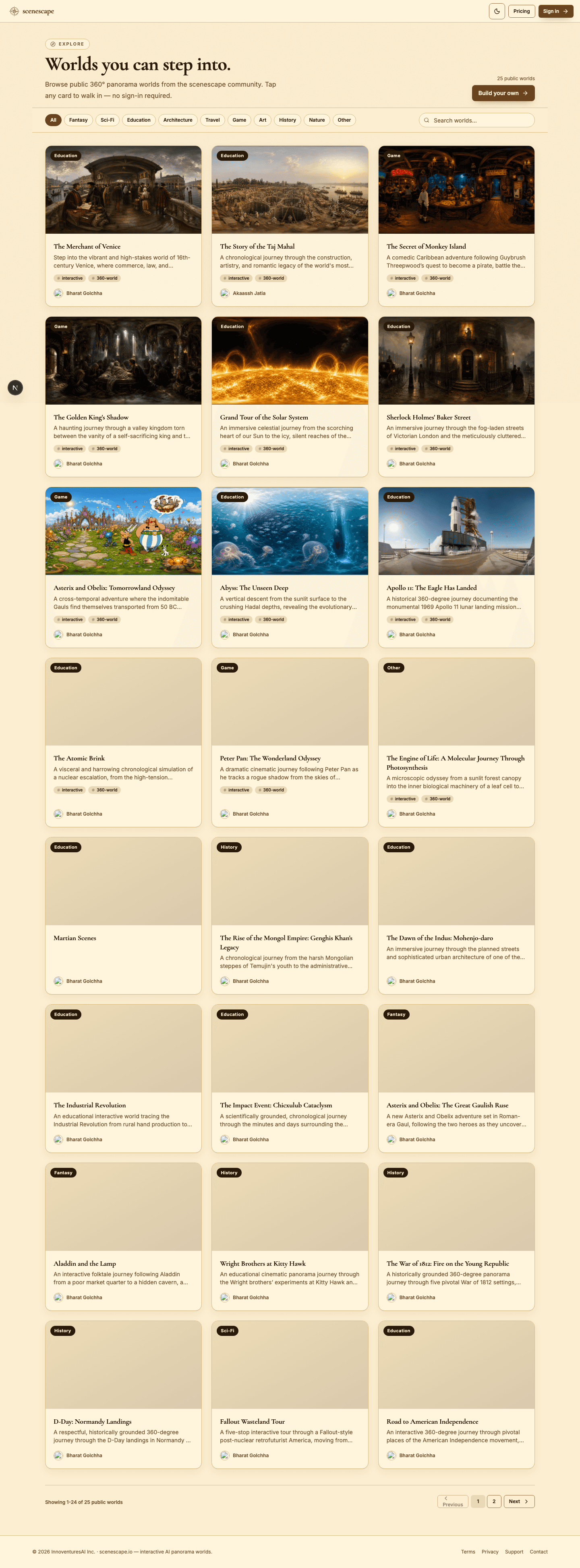
Previewing, publishing, and Explore
Check readiness, choose the right visibility, push updates to live worlds, and decide when a world belongs in Explore.
Continue